NotebookLM is a research tool from Google that answers questions from sources you choose, instead of from the open web alone. Google renamed it Gemini Notebook on July 16, 2026, and the product now lives at notebook.google.com. The old name is still how most people know it, so this review uses NotebookLM and notes the new name where the product shows it.
This feature review follows the product in the order you use it: add sources, chat with them, then turn them into study material, audio, video, reports, and slides in the Studio panel. It does not rate the product and it does not judge answer quality across subjects. You judge that on your own sources, because the same question gives a different answer in every notebook. Google says more than 30 million people and over 600,000 organizations use the tool, per the rename announcement.
Sources
A notebook starts with sources. A source is one document or link that the notebook can cite, such as a PDF, a website, a YouTube video, an audio file, a Google Doc, a Google Slide, or text you paste in. Google's help pages say each source can hold up to 500,000 words. The free Standard plan covers 100 notebooks with up to 50 sources in each notebook.
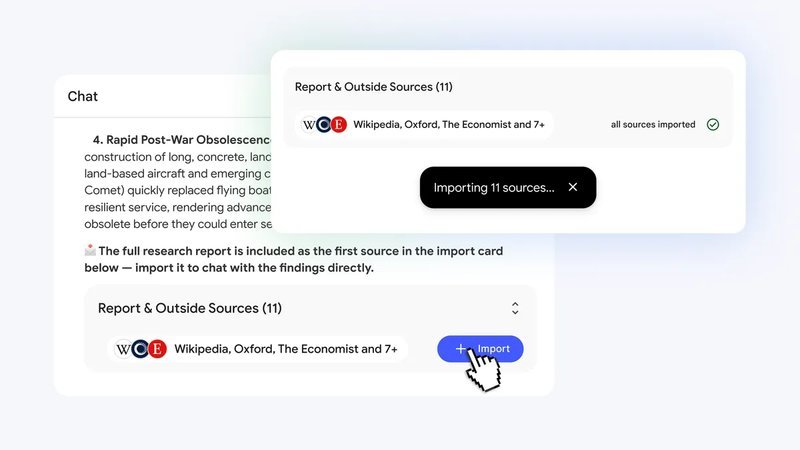
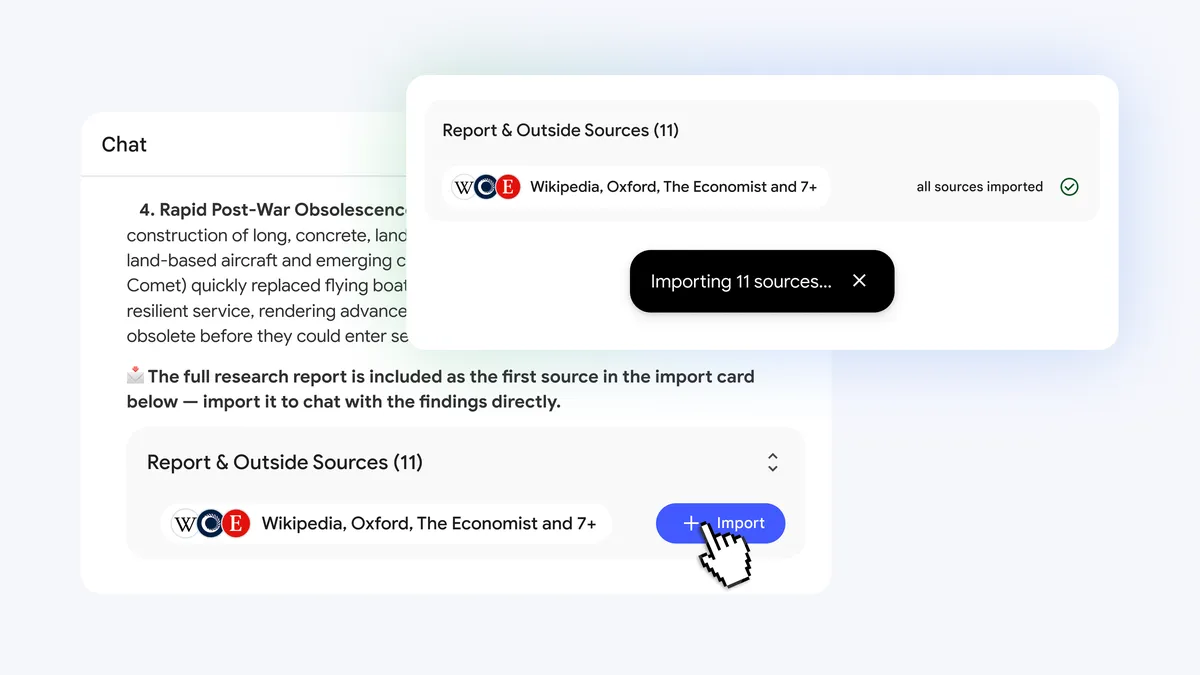
You can also start from a question instead of a finished file set. NotebookLM can search the web for sources, show you the list it found, and import the sources you pick into the notebook. You stay in control of that list. Nothing enters the notebook until you import it, and every source stays named on screen after you add it.
That source list is the limit of the notebook. If a fact is not in a source and not in a source the tool found for you, the notebook has no checked basis for it. Review the source list before you review any output, and remove pages you would not cite yourself.
Chat and citations
Chat is where you ask questions about the sources in the open notebook. Answers carry in-line citations, which are numbered markers in the answer that point back to the passage in a source behind that sentence. You click a citation to check the passage before you reuse the sentence anywhere else.
That check step matters. A citation shows where an answer came from. It does not prove the answer used the passage correctly, and it does not fix a weak source. The routine that fits this tool is plain: ask a narrow question, follow the citations on the claims you plan to use, and open the source itself when a number, date, or quote has to be exact.
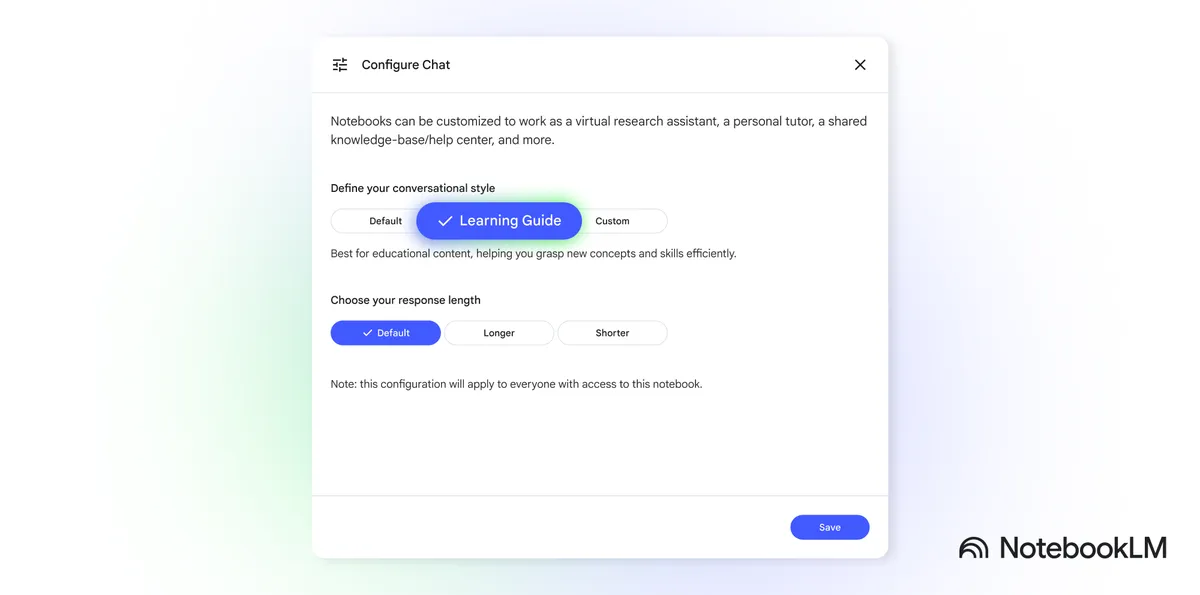
You can set how chat replies before you ask. Configure Chat offers Default, Learning Guide, and Custom styles, plus Default, Longer, and Shorter response lengths. Learning Guide is the tutoring style, built to explain a concept in steps. Custom takes your own instruction, for example a short answer with no new terms. The setting applies to everyone who can open that notebook, so a shared notebook keeps one reply style for the whole group.
Google's July 2026 upgrade moved NotebookLM onto Gemini 3.5 and added a secure cloud computer to notebooks. A secure cloud computer here means the tool can write and run code on Google's side, inside the notebook, to work on data in your sources. Google announced it first for Google AI Ultra and some Workspace plans, with rollout to Pro users on the web after that. Check your own notebook for the feature before you plan work around it, because rollout and plan decide whether you see it.
Studio outputs
The Studio panel turns the sources in a notebook into finished formats. One set of sources can give you several outputs, and each output stays stored in the notebook beside the sources it came from.
- Audio Overviews: A spoken discussion of your sources that you can listen to away from the screen. Google positions this for review on a walk or a commute, and paid plans raise the daily number you can generate.
- Video Overviews: A narrated video built from your sources, for people who take in a new topic better by watching than by reading.
- Reports: Written documents from your sources, including briefing documents and study guides. A briefing document sums up the main points and quotes for a reader who has not seen the sources. Newer report options add charts and tables, and you can download outputs such as PDF reports and spreadsheets.
- Flashcards and Quizzes: Practice questions made only from your sources, for testing whether you remember the material instead of only recognizing it.
- Mind Maps: A branching diagram of the main topics in your sources and how they connect. You select a branch to ask chat about that topic.
- Slide Decks: A presentation built from your sources, for turning research into something you can talk through with a class or a team.
- Infographics and Data Tables: A visual summary or a structured table from your sources, for figures and comparisons that read badly as paragraphs.
Every output inherits the limits of the source list. A slide deck from three short sources is a summary of those three sources, not a survey of the subject. Review an output the way you review a chat answer: follow the claim back to the source before you present it, and fix the source list when the output shows a gap.
Notes and sharing
You can save a chat answer, a quote, or your own text as a note inside the notebook. Notes keep the points you picked out next to the sources, so you do not have to rerun the same question to find them again. Studio outputs sit in the same notebook, so the source, the answer, the note, and the finished document stay together for one project.
You can share a notebook with other people on a Google account. Sharing suits a class, a study group, or a work team that needs the same source set. It also raises the care you take with uploads. Google states in its plan help that your data is not used to train Gemini Notebook unless you give feedback on an answer. That statement does not settle your employer's or school's own rules. Check those rules before you upload contracts, student records, health material, or any file you do not have the right to share with a cloud service.
What you can use it for
The tool fits work that starts with material you already trust and ends with something you have to explain, study, or hand to someone else.
- Study from your own course material. Add lecture notes, set chapters, and past papers to one notebook. Ask chat to explain a topic from those sources, then generate flashcards and a quiz to test recall before an exam.
- Get through a long document set. Add reports, manuals, or research papers for one project. Ask for the points where sources agree and the points where they differ, then check the citations on each point you plan to use.
- Prepare a briefing for other people. Add the source documents for a decision, generate a briefing document, and add a slide deck when you have to present it. The readers get the summary and you keep the sources that back it.
- Learn a topic by listening or watching. Add the readings for a new subject and generate an Audio Overview for travel time or a Video Overview when diagrams carry the point.
- Onboard to a new team or subject. Add the handbooks, guides, and reference pages a new starter needs. A shared notebook with the Learning Guide chat style gives that person one place to ask basic questions with citations to the official page.
- Work with numbers in documents. Where the cloud computer is available on your plan, ask the notebook to run calculations or build a chart or spreadsheet from figures in your sources, then check the table against the source before you use it.
For note organization across your own files outside Google, the Obsidian review covers a different setup: plain Markdown files on your device that you can also pass to AI tools.
Who It's For
NotebookLM suits you if your work starts with a set of documents you already trust: course readings, project reports, manuals, interview transcripts, or research papers. It suits students who study from set material, teachers who build study aids from a curriculum, and work teams who keep asking the same questions of the same document set.
It suits you less if you need answers beyond your sources as the main job, or if your material cannot go into a Google service under your work or school rules. It also suits you less if you need a permanent record you control file by file. NotebookLM works inside Google accounts and Google plan limits, and outputs can repeat a source error with confidence unless you check the citation.
Verdict
NotebookLM does one job in several forms: it keeps answers tied to sources you picked, shows the citation behind each answer, and then turns that same source set into audio, video, reports, study aids, and slides. The source list is both the strength and the limit. A careful source list gives you outputs you can check line by line. A careless one gives you polished output built on material you would not have cited yourself.
The rename to Gemini Notebook changes the name and adds Google account and Search connections. It does not change the routine that makes the tool useful: pick sources you trust, ask narrow questions, follow citations, and review every output before you hand it on. This review covers the features Google documents, checked on November 3, 2026. It does not rate the product.
Price and availability
The Standard plan costs nothing and needs a Google account. It covers 100 notebooks, up to 50 sources per notebook, chat with citations, and Studio outputs with daily generation limits. Paid Google AI plans raise those limits. Google's plan table lists 300 sources per notebook on Google AI Pro and 500 notebooks per user, and US pricing for Google AI Pro is $19.99 a month on Google One. Prices change, so check the current plan and price for your country before you pay. The product runs in a browser at NotebookLM, now Gemini Notebook, with mobile apps in supported countries, and Google lists support for more than 80 languages.
Sources: Google, NotebookLM is now Gemini Notebook, Do better research with NotebookLM, 6 NotebookLM features to help students learn, Learn about Gemini Notebook, and Learn about Gemini Notebook plans. Features, limits, and prices checked November 3, 2026. Screenshots are product views published by Google in those posts, downloaded November 7, 2026. Copyright in the screenshots stays with Google.